
Getting started
Activate your licence
Paste your key into Studshine, the first time or on a new PC.
Your licence key looks like STUD-XXXX-XXXX-XXXX-XXXX. It shows on the page after your payment and also arrives by email. Keep it to yourself, like a password.
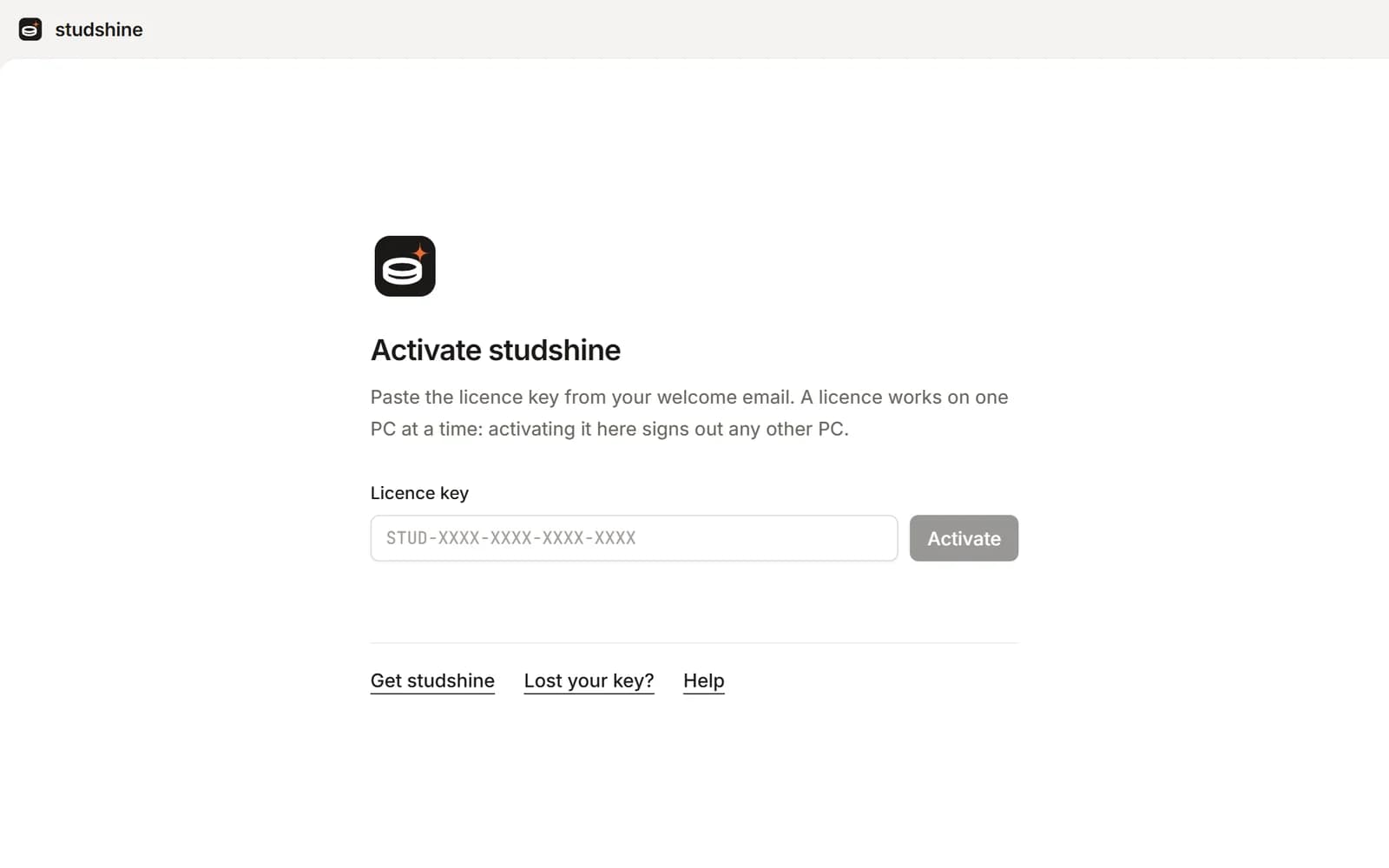
- Open Studshine. The Activate studshine screen shows as long as this PC has no active licence.
- Paste your key into the Licence key field. Capitals, spaces and dashes don't matter.
- Click Activate. The PC must be online at that moment.
- Studshine opens. Next: the setup.
A licence works on one PC at a time. Activating it here signs out the PC where it was active before. The licence rules.
If activation is refused
| Studshine's message | What to do |
|---|---|
Copy the key again from your email: it starts with STUD-. | |
| Check it character by character, or have it sent again by email. | |
| Your subscription has ended: subscribe again or settle the payment. | |
| More than 10 activations in 30 days: wait a few days, or write to us on Discord. | |
| Check the PC's internet connection, then try again. | |
| Wait a minute, then try again. |
In the same category
- Install Studshine on WindowsWhat you need, then the install in a few minutes.
- Install Studshine on MacFor a Mac with Apple silicon: the install, opening it the first time, and Git.
- The setupYour game's folder, Claude and the tools: the « Set up this computer » screen.
- Connect Roblox StudioTurn on Studio's MCP server so the AI can see your place and build in it.
- Your first requestDescribe your game, choose an art direction, move forward one thing at a time.